
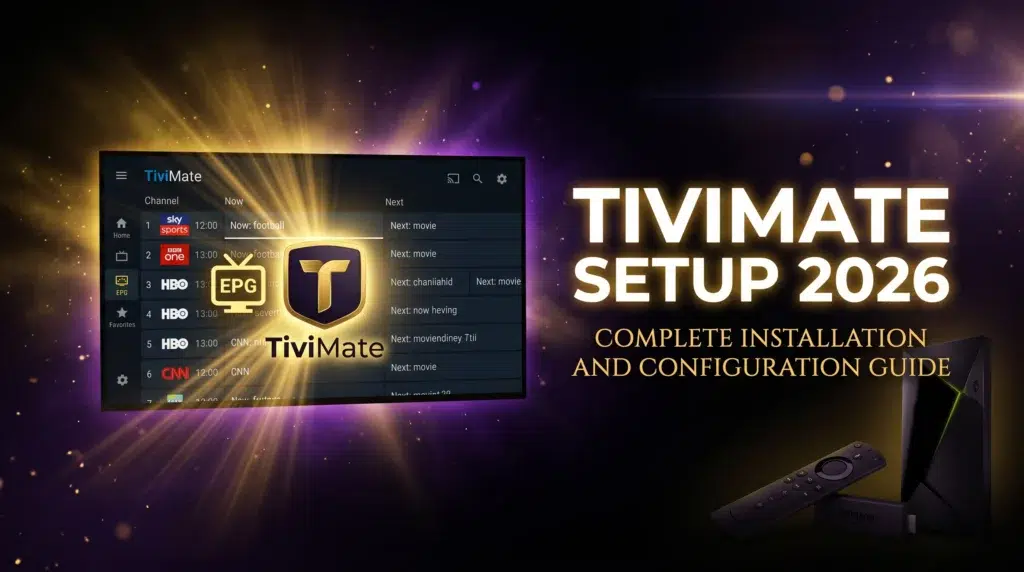
TiviMate setup 2026 is the installation process that separates casual IPTV users from viewers who have built a genuinely optimised streaming setup that performs at its ceiling every single day. TiviMate is universally recognised as the best IPTV player app available in 2026 for the viewers it supports, which is anyone on an Android device including Firestick, Android TV box, Android phone, or Android tablet.
Its EPG layout, channel navigation speed, buffer configuration options, and overall interface polish are ahead of every competing player app by a meaningful margin. The challenge is that TiviMate is not available in the Amazon App Store or Google Play Store directly which means installation requires the sideloading process on Firestick and a third-party APK source on Android devices. Beyond installation the configuration options that make TiviMate exceptional are not set optimally by default and finding the right settings for your specific device and connection is the step that most installation guides skip entirely. This guide covers both.
TiviMate setup 2026 requires sideloading the APK on Firestick via Downloader or direct Play Store installation on Android TV boxes, entering your provider Xtream Codes credentials, then configuring buffer size, EPG timezone, hardware decoding, and favourites groups. The full installation takes under 20 minutes and the configuration steps covered in this guide transform a basic installation into the best IPTV viewing experience available on any device in 2026.
Table of Contents
Installing TiviMate on Firestick in 2026: Step by Step
TiviMate installation on Firestick requires the Downloader app and Unknown Sources enabled in Developer Options. If you have not enabled Unknown Sources previously navigate to Settings, My Fire TV, Developer Options, and toggle Apps from Unknown Sources to On. This setting is required for all sideloaded apps on Firestick and takes under one minute to enable.
Open Downloader and enter the direct APK download URL for TiviMate from the official TiviMate website. The download takes between one and three minutes depending on your internet speed. When the download completes Downloader automatically prompts you to install the APK. Select Install and wait for the installation to finish. Select Done rather than Open after installation completes.
TiviMate appears in your Firestick app library after installation. Before opening it for the first time delete the downloaded APK file from Downloader to free storage space on your Firestick. Open Downloader, navigate to the File Manager section, find the TiviMate APK file, and delete it. This housekeeping step prevents storage accumulation from multiple APK downloads over time and keeps your Firestick running at full performance capacity.
Installing TiviMate on Android TV Box in 2026
Android TV box installation of TiviMate is simpler than Firestick because the standard Android operating system allows APK installation from multiple sources without the specific sideloading restrictions that Fire OS imposes. The most straightforward method on an Android TV box is installing the Downloader app from the Google Play Store and using it to download the TiviMate APK from the official source exactly as described for Firestick.
Alternatively Android TV box users can install the Aptoide TV app from the Google Play Store which provides access to TiviMate without requiring manual APK URL entry. Aptoide TV is a third-party Android TV app store that carries TiviMate among thousands of other Android TV applications and updates them automatically when new versions are released.
A third option for Android TV box users is enabling Unknown Sources in Android Settings and downloading the TiviMate APK directly through the device’s browser. This method works but requires more navigation steps than the Downloader approach and is less suitable for remote-control-only devices where text entry through an on-screen keyboard is slower than on a touch device.
Entering Your Provider Credentials in TiviMate 2026
Opening TiviMate for the first time presents a setup wizard that guides you through adding your first playlist. Select Add Playlist from the welcome screen and choose Xtream Codes as your connection type for the most feature-complete integration between TiviMate and your provider’s channel list and EPG data.
Enter your server URL in the Host field exactly as provided by your provider including the port number at the end of the URL. Enter your username and password in the respective fields paying careful attention to uppercase and lowercase characters. Select Add after completing all three fields and TiviMate connects to your provider server and begins downloading your channel list and EPG data.
The initial channel list and EPG population takes between one and five minutes depending on the size of your provider’s channel list and your internet connection speed. Do not navigate away from the loading screen during this process. When loading completes TiviMate opens your channel list automatically and the EPG guide begins populating with programme schedule data. If your provider supplies an M3U playlist rather than Xtream Codes credentials select M3U Playlist as the connection type instead and enter your playlist URL in the provided field. Before testing credentials confirm your provider account is active by checking with a best IPTV service 2026 verified provider to ensure your trial or subscription credentials are properly provisioned.
Essential TiviMate Settings to Configure in 2026
The default TiviMate configuration delivers a functional experience but several specific settings changes produce significant improvements in stream quality, EPG accuracy, and daily navigation speed that every installation should apply immediately after the initial channel list loads.
Navigate to Settings then Player. Set the buffer size to 10 seconds as your starting configuration. This value tells TiviMate how much stream data to hold in memory before beginning playback. A 10 second buffer absorbs short server hiccups without freezing your stream while keeping initial channel loading time reasonable. If you experience frequent loading delays before streams begin playing reduce this to 5 seconds. If you experience occasional brief freezing during streams increase it to 15 seconds.
Enable hardware decoding in the same Player settings menu. Hardware decoding offloads video processing from your device’s main processor to its dedicated video decoder chip, reducing processor temperature during extended viewing sessions and producing smoother playback on H.265 encoded 4K streams. Software decoding can cause stuttering on 4K content even when the stream and connection are both performing correctly simply because the main processor lacks sufficient speed to decode HEVC in real time.
Navigate to Settings then General and set your EPG timezone to match your local time. This single setting prevents the most common TiviMate complaint which is programme schedules displaying offset from actual broadcast times. Set your EPG update interval to every 12 hours to maintain guide accuracy without requiring manual refreshes between viewing sessions.
Building Your TiviMate Favourites and Groups in 2026
A TiviMate installation without organised favourites groups is like a cable package without a channel guide. The raw channel list of 10,000 or more channels is navigable by search but impractical for the spontaneous channel browsing that makes live television enjoyable. Building a well-organised favourites structure on day one transforms your daily experience from search-dependent to genuinely fluid.
Create groups that match your actual viewing habits rather than generic categories. A Sports group containing your 20 most-watched sports channels loads instantly and eliminates scrolling through thousands of entries to reach the Champions League feed. An Entertainment group with your primary drama and film channels, a News group with your regular news sources, and an International group for any language-specific content you follow regularly covers the viewing habits of most households in under 50 channels total.
To add a channel to a favourites group long-press the channel in any list view and select Add to Favourites then choose the group to add it to. Create new groups during this process by selecting New Group and naming it. The favourites bar appears as the first category in your TiviMate channel list and each group within it opens with a single remote button press. The time invested in building this structure on setup day pays back every subsequent viewing session for the entire life of your subscription. Combined with a reliable provider the result is the cleanest live television navigation experience available at any price point. The IPTV buffering fix 2026 guide covers the additional optimisation steps for TiviMate buffer and decoder settings if stream quality issues appear after your initial configuration.
Frequently Asked Questions
Is TiviMate free or paid in 2026?
TiviMate has both a free version and a premium version called TiviMate Premium. The free version supports one playlist and provides core channel navigation and EPG functionality. TiviMate Premium adds multiple playlist support, recording functionality, automatic EPG updates, panel customisation, and parental controls. The premium version is available as an annual subscription or lifetime purchase through the TiviMate Companion app on Google Play Store and costs significantly less than one month of most streaming service subscriptions.
Why is TiviMate not on the Google Play Store in 2026?
TiviMate is not listed on the Google Play Store due to the developer’s preference for direct distribution rather than platform dependency. The app is available from the official TiviMate website as a direct APK download and through third-party Android TV app stores like Aptoide TV. This distribution method means TiviMate is not subject to Google Play Store policy restrictions that have historically affected IPTV apps and allows the developer to release updates without App Store review delays.
Can TiviMate record live TV in 2026?
Yes with TiviMate Premium. The recording function allows you to record live channels to a connected USB storage device or network storage location. Scheduled recordings can be set from the EPG guide by selecting any upcoming programme and choosing the record option. Recorded content plays back through TiviMate’s built-in player without requiring any additional software. Recording requires sufficient storage capacity on the connected device for the duration and quality of content being recorded.
Does TiviMate work with all IPTV providers in 2026?
TiviMate works with any IPTV provider that offers Xtream Codes API credentials or M3U playlist URLs, which covers the vast majority of providers in the current market. Providers who only offer proprietary app-based access without standard Xtream Codes or M3U compatibility are not compatible with TiviMate. This incompatibility is itself a useful quality indicator since providers who support open standard connection protocols are typically more established and technically capable than those who restrict subscribers to proprietary apps.
How do I update TiviMate on Firestick in 2026?
TiviMate does not update automatically on Firestick because it is a sideloaded app outside the Amazon App Store update system. To update repeat the Downloader APK installation process using the latest version URL from the official TiviMate website. The new version installs over the existing installation preserving all your credentials, favourites groups, and settings without requiring any reconfiguration after the update completes.
Conclusion
TiviMate setup 2026 done correctly is a one-time investment of 20 minutes that delivers years of the best IPTV viewing experience available on any device. Install via Downloader on Firestick or direct APK on Android TV box, enter your Xtream Codes credentials, configure your buffer size and hardware decoding, set your EPG timezone, and build your favourites groups before your first viewing session. Every step in this guide has a specific purpose and the result of following them all is a TiviMate installation that runs at its full capability from day one. No other IPTV player app in 2026 comes close to what a properly configured TiviMate delivers on quality hardware with a reliable provider behind it.